Set up your navigation
Signal has no separate menu builder. It reads your Shopify navigation menu and decides how to present it — a menu item with sub-items opens a panel; one without is a plain link.
So the shape of your menu in admin is the shape of your header.
Do this
Section titled “Do this”-
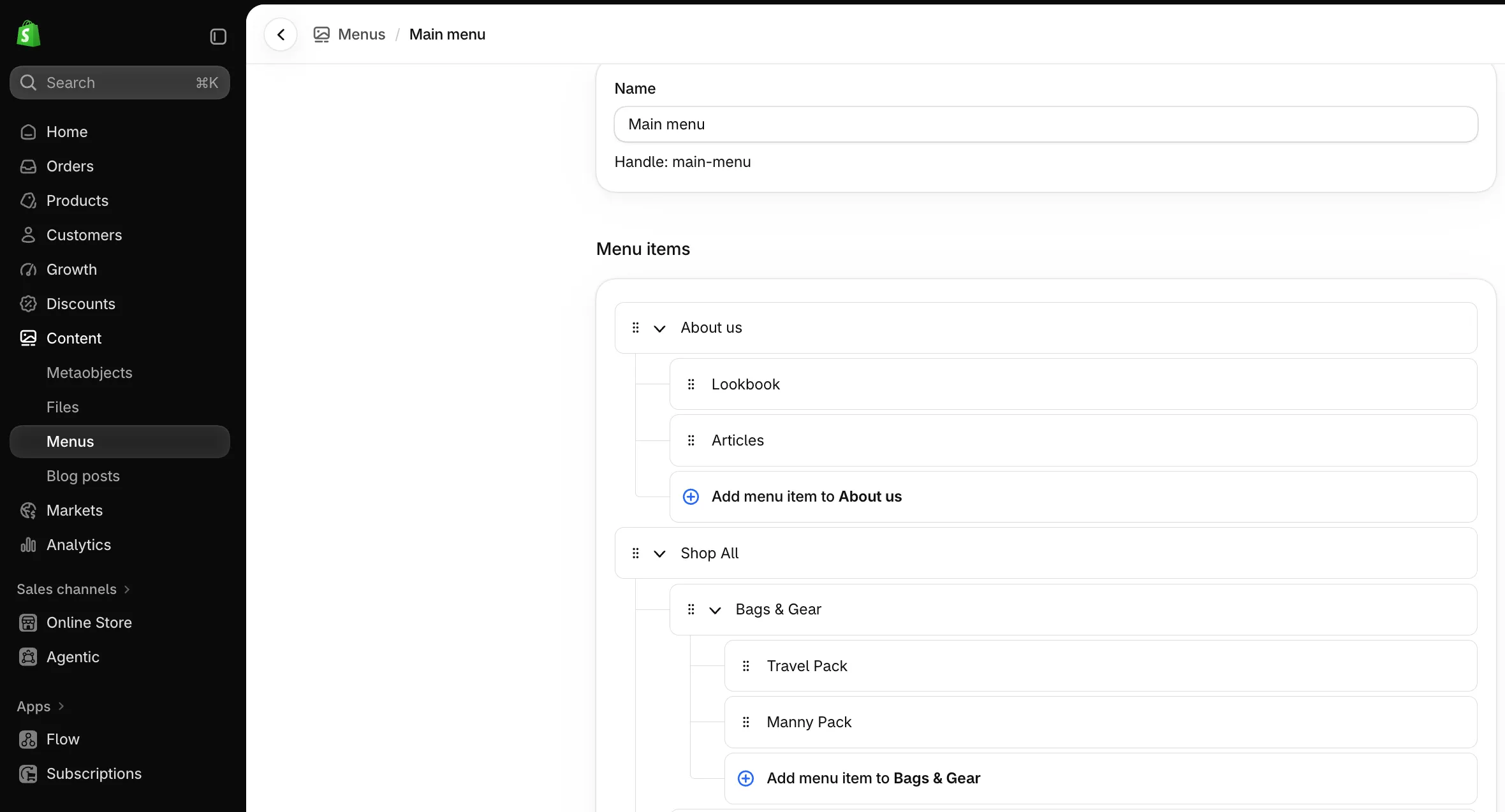
Build the menu in admin.
Shopify admin → Content → Menus → Main menu.
Add your top-level items. Under any of them, add sub-items — those are what turn a link into a panel.
-
Nest a third level if you want it.
Sub-items can have their own sub-items. Signal renders all three levels: a heading, its links, and smaller links beneath those. Useful for Shop → Bags & Gear → individual products.
-
Point the theme at the menu.
Theme editor → Header section → Menu. Pick your menu. Most stores use Main menu and never change this.
-
Add a promo to a panel, optionally.
With Header selected, Add Mega panel promo. Give it an image, heading and link, and set Menu position to say which dropdown it belongs to — position 1 is the first menu item that has a dropdown.
-
Save, then test on a phone width.
What that produces
Section titled “What that produces”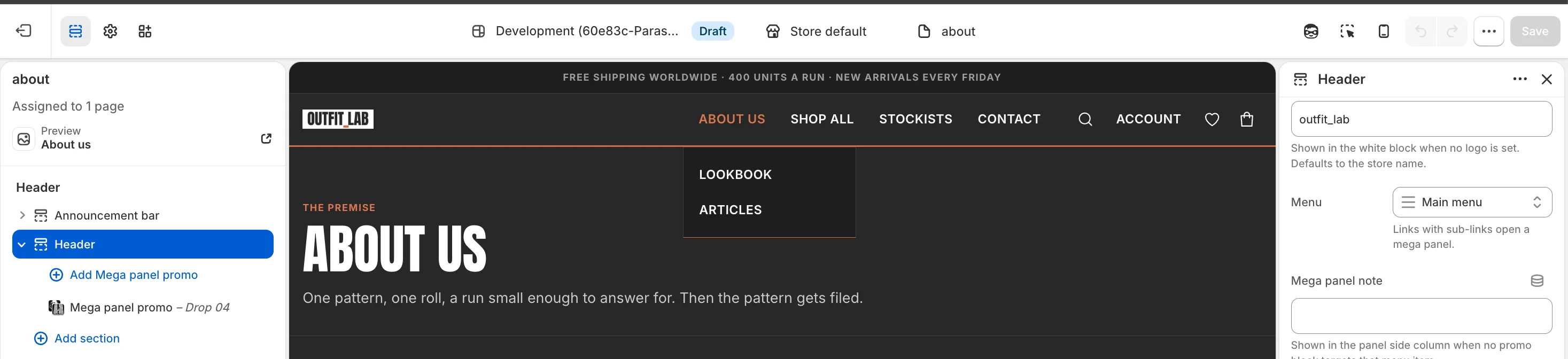
The two sub-items under About us became that panel. Nothing was configured in the theme to make it happen — the Header’s only navigation setting is which menu to read.
How Signal decides what to show
Section titled “How Signal decides what to show”You don’t choose between a dropdown and a mega panel. The content decides:
| What’s in the menu item | What shoppers get |
|---|---|
| No sub-items | A plain link |
| A few sub-items, no third level | A compact panel — just the links |
| Four or more sub-items, or any third level, or a promo with an image | The full-width mega panel |
This is why adding one product under a category can change how the whole menu looks. It’s deliberate — a panel with two links in it wastes the width.
On mobile
Section titled “On mobile”The same menu becomes a drawer. Tapping a parent expands it rather than navigating, so Signal adds a row at the top of each expanded item that leads to the parent page itself — otherwise your About us page would be unreachable from the menu.
That row reads Go to [name] by default. Rename it under Header → Mobile
menu parent link; [title] is replaced with the menu item’s own name.
If it looks wrong
Section titled “If it looks wrong”My menu item doesn’t open a panel. It has no sub-items. Add some in admin.
I get a compact panel and wanted the full one. Add a fourth sub-item, nest a third level, or attach a promo with a real image.
The promo is on the wrong dropdown. Menu position counts only items that have dropdowns, not all menu items. If your first two items are plain links, position 1 is the third item.
Changes in admin aren’t showing. The theme reads the menu live, so it’s usually a cached preview — hard-refresh. Check you edited the menu the Header setting points at, not a different one.
- Header reference — every setting, including sticky behaviour
- Pages and templates — the pages your menu links to
- Footer — which takes its own menu